Small text can make the fine details of kanji difficult to inspect on a phone or computer. POPOMEE has released Character Magnifier, a browser-based tool that lets you enter text, choose one character, and display it at a much larger size.
Open Character MagnifierEnter text and enlarge one character for a closer look
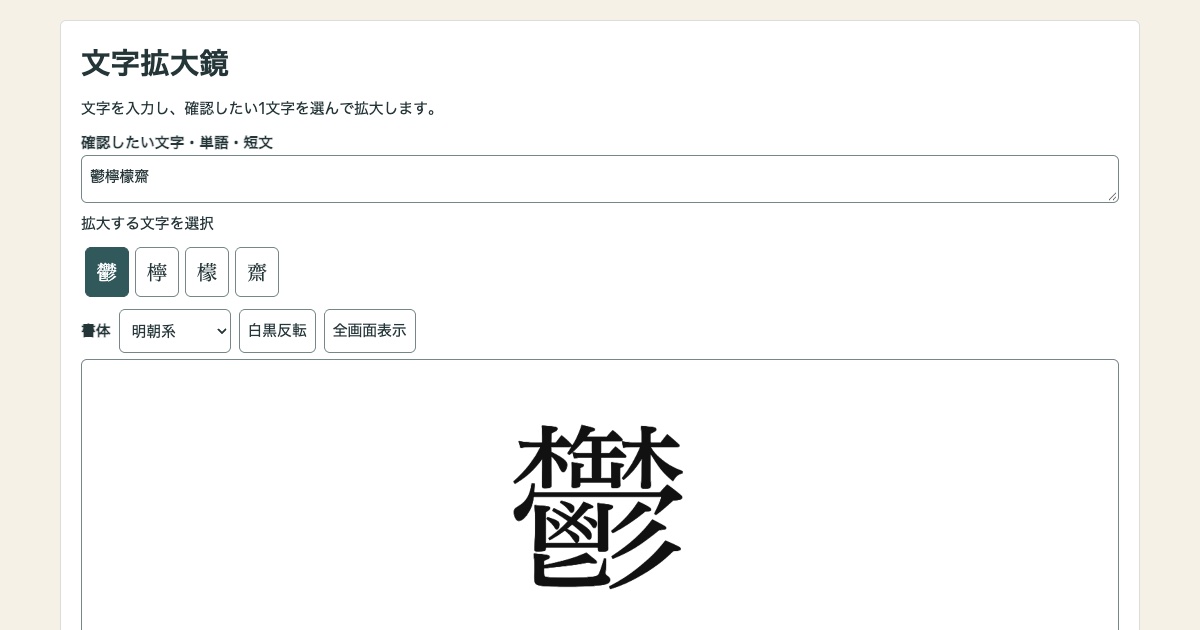
What Character Magnifier can do
- Enter kanji, words, or a short sentence and choose one character
- Enlarge the chosen character from 48px to 1000px
- Switch between Japanese serif and sans-serif typefaces
- Fit the glyph to the view, invert colors, or use full screen
- Copy the chosen character to the clipboard
How to use it
1. Enter text
Enter the kanji, word, or short sentence you want to inspect. The first 100 non-whitespace characters are shown in the character list.
2. Choose one character
Choose a character from the list below the input field. The app keeps variation markers and combined characters together when the browser supports the required text handling.
3. Adjust the display
Use the slider or plus and minus buttons to change the size. You can also fit the glyph to the view, invert black and white, or enter full-screen mode.
Glyphs and fonts
The displayed glyph depends on the fonts installed on your device. The app does not load external fonts. Rare kanji and character variants may be unavailable or may use another typeface.
Printed typefaces can differ from handwritten forms. This tool does not provide stroke order or judge whether handwriting is correct, so consult a dictionary or an official reference when necessary.
How input is handled
Your text is processed only in the browser. The app does not send it to the server or save input history. No login or account is required.
Enlarge a character
Use the tool whenever you need a closer look at a small or detailed glyph.
Use Character MagnifierStart enlarging characters without an account